
When using a voucher (certificate) to pay for a reservation, you can now easily view more detailed information.
This feature gives you an instant overview of how much of the voucher's value is still available, which reservations it has already been used for, and much more. This makes it easy to verify voucher usage and quickly inform guests of the current balance.
How to enable this feature?
This is an optional feature that must first be enabled.
1. Go to Settings → System → General settings.
2. In the Certificates section, find the "Show voucher usage details when applying" setting.
3. Tick the corresponding checkbox to enable the feature and save your changes.
If the feature is not enabled, vouchers can be used as before, without displaying any additional information.
How does it work?
1. Open the reservation and go to the payment page.
2. Select the voucher you want to use for payment.
3. Click the Apply button.
4. An information window will automatically appear, displaying an overview of the selected voucher.
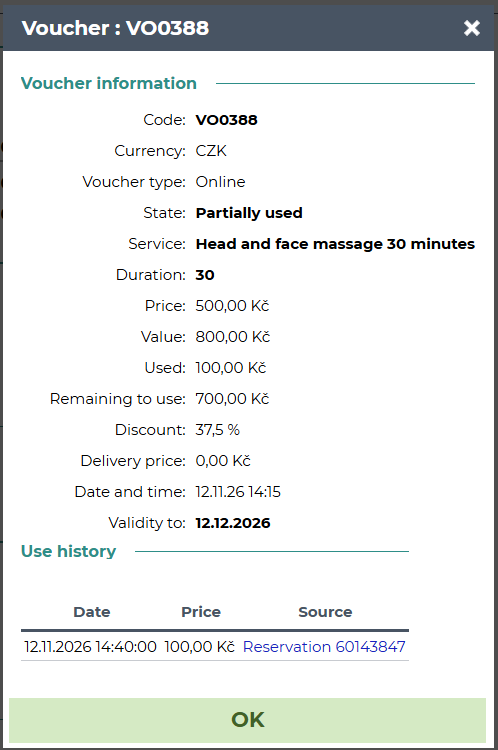
Close the information window by clicking OK or the cross in the top-right corner.
What is good to know?
Automatic display: The information window appears every time a voucher is applied. Once closed, it cannot be reopened unless the voucher is removed and added again.
Multiple vouchers in a single payment: If you use multiple vouchers to pay for a reservation, the information window will appear for each voucher in turn.
Supported types: This feature supports both price vouchers and service vouchers, including manually created and online vouchers.
Use history: Displays reservations where the voucher has already been used, if any. You can click through to view these reservations.
With this new overview, you have all the important voucher information available directly during payment, without having to look it up elsewhere.